

27 changes
Hand work to a bot, see who changed what, and change your own email
Give a board item to a bot with a prompt, mention a bot in a comment, and see every change to an item with who made it and a way to put it back. You can now change the email you sign in with yourself, and customers who reply to a waiting ticket send it back to your team.
- 17 new
- 6 improved
- 4 fixed
On this page11 sections
Highlights
01Bots
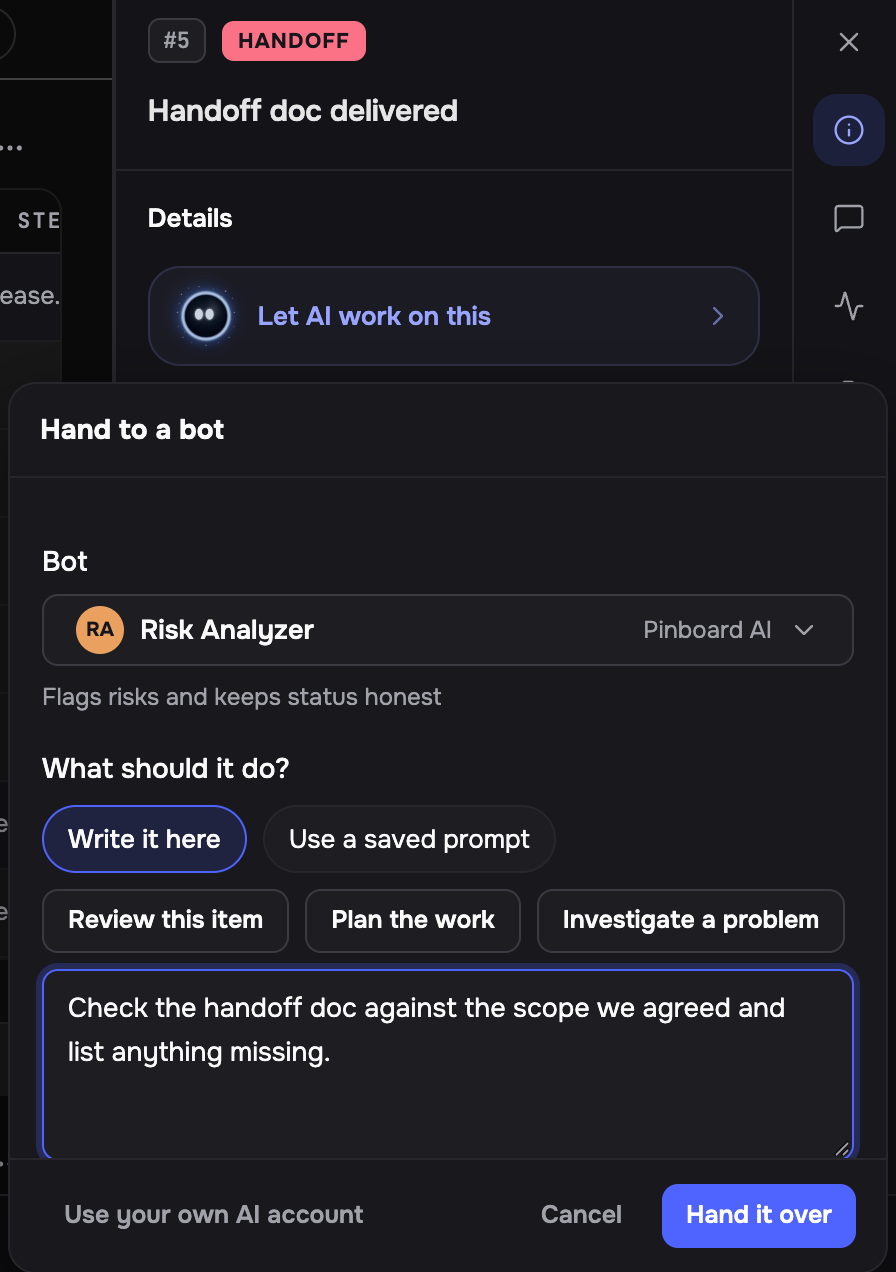
Hand an item to a bot
Give a board item to one of your bots with a prompt you write or one you saved, and it gets to work on that item.
Projects → open a board → open an itemChoose Let AI work on this in the item's details, pick a bot, then write a prompt or pick a saved one.
02Boards
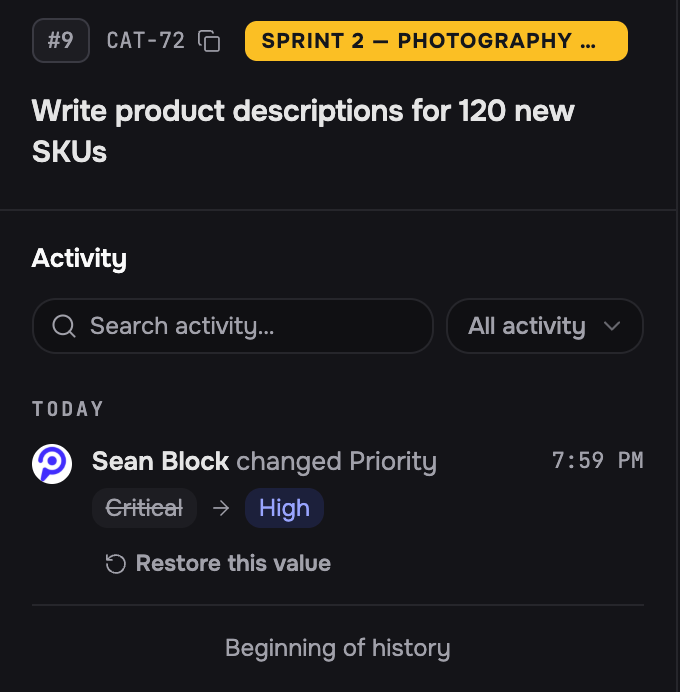
See who changed what, and put it back
An item's history now shows each change and who made it, a person, a bot or an automation, and lets you restore an earlier value.
Projects → open a board → open an item → ActivityPoint at the change in the item's activity and choose Restore this value.
03Account
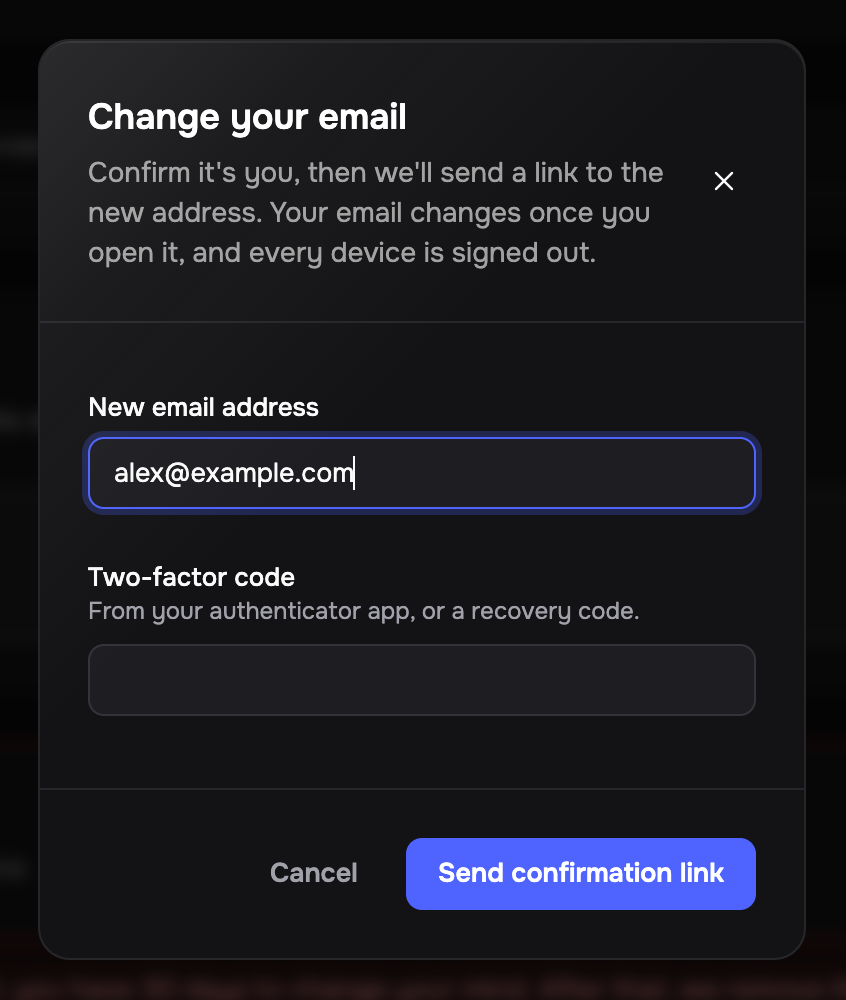
Change your own email
Change the email you sign in with from your profile, confirmed with a code, your passkey or your authenticator app.
Your avatar → Profile → GeneralChoose Change email under Email Address, enter the new address and confirm it's you.
Every change
Bots
8- NewHand a board item to a bot with a prompt you write or one you saved, from Hand to a bot on the item.
- NewMention a bot in an item comment to hand it that comment as its prompt.
- NewSave prompts on a bot and reuse them on items and in Automations.
- NewAutomations has a Run bot step that runs a bot with a written or saved prompt.
- NewMessages a bot writes to people outside your team wait in the Outbox until someone approves them.
- NewWorkspace admins can pause every bot at once and set run limits.
- NewHide a board field from bots, or let them see it but not change it, with Bots can't see and Bots can't edit.
- ImprovedEveryone gets a My bots page to manage the bots they own.
Boards
2- NewAn item's activity shows each change with who made it: a person, a bot or an automation.
- NewRestore an earlier value of a field from the item's activity.
Sheets
2- NewUndo a cleared range with Cmd+Z (Ctrl+Z on Windows), even after it has saved.
- NewClearing 20 or more cells shows an Undo button for a few seconds, so a big delete never goes unnoticed.
Service Desk
6- NewWhen a customer replies to a ticket that's waiting on them, it goes back to your team automatically.
- NewMark ticket statuses as people-only, so only a person can set them, never a bot, a token or an automation.
- ImprovedTicket activity says whether a person, a bot, an automation or the customer made each change.
- ImprovedAutomations for new tickets and status changes now run for tickets from the portal, public forms and the chat widget too.
- FixedEmail replies, portal requests and chat widget handoffs reach the right ticket again.
- FixedEmail replies are only added to a ticket when the sender's address can be verified.
Account
1- NewChange the email you sign in with from your profile.
Notifications
1- ImprovedYou only get an email about a notification you haven't already seen in Pinboard.
People
1- NewChange which apps someone has right from the People list: tap their app icons or choose Edit apps from the ⋯ menu, and see the new monthly cost before you save.
CRM
3- NewFilter deals by amount, hide deals by owner or with no owner, and save your filters.
- NewSort the deal list by any column, including project and account.
- ImprovedDelete a deal from the list, with a confirmation first, and the actions column stays in view as you scroll.
Chat
2- FixedA message's actions now appear on the message itself, not across the whole row.
- FixedThe chat page no longer uses more and more memory during long calls.
Forms
1- ImprovedPublic request forms now check that a person, not a bot, is submitting them.