

23 changes
See everyone in your workspace, leave when you're done, and forecast your deals
A new People page shows who is in your workspace and what each role can do. You can leave a workspace yourself, ownership transfers hand over billing too, CRM deals get a forecast, and sheets save range edits much faster.
- 5 new
- 5 improved
- 13 fixed
On this page8 sections
Highlights
01Workspaces
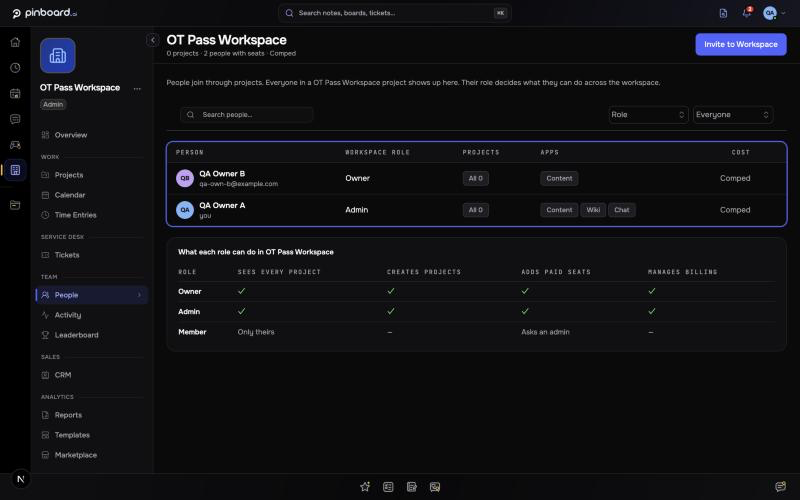
Everyone in your workspace, on one page
People lists everyone in your workspace's projects with their role, the projects and apps they use, and what their seat costs, and explains what each role can do.
Workspaces → open a workspace → PeopleFilter by role, or search for a person, above the list.
Every change
Workspaces
7What to expect
People replaces Members and shows everyone in the workspace's projects. Anyone can leave a workspace from the menu beside its name; an Owner has to hand ownership to someone else first. Transferring ownership also makes the new Owner the workspace's billing contact.
- NewPeople replaces Members: everyone in the workspace's projects, by role, with the projects and apps they use and what their seat costs.
- NewYou can leave a workspace from the menu beside its name, and leaving your last project in a workspace leaves the workspace too.
- NewSeeing every project can be given on its own, as read-only access to all of the workspace's projects.
- ImprovedTransferring ownership hands over the billing contact as well, and a Member who is offered ownership can accept it.
- ImprovedCreating a workspace only asks for its name.
- FixedButtons your role can't use are hidden instead of failing when you click them.
- FixedYou can only change the roles of people below you.
Projects
3What to expect
New project takes two steps: name it, then pick its apps and invite people. If you can't add paid seats, you can still invite guests and ask an admin for seats.
- ImprovedNew project is a two-step dialog instead of a four-step wizard, and never charges someone who can't add seats.
- FixedAccepting a project invite, or opening a project from your favorites or the timeline, opens the project instead of a missing page.
- FixedFavorite projects load again.
CRM
4What to expect
Each deal can have a win percentage, a priority and a forecast category. The Forecast tab shows the next twelve months of expected revenue by close date, weighted by each deal's win percentage. Board column totals are shown separately for each currency.
- NewA Forecast tab shows a rolling year of revenue by expected close date.
- NewDeals have a win percentage, weighted value, priority and forecast category, and the CRM assistant can set them.
- FixedBoard column totals are shown per currency instead of adding different currencies together.
- FixedA list that fails to load says so, and dragging a card on the board follows your pointer.
Sheets
2What to expect
Pasting into, editing or clearing a range of cells saves as one change.
- ImprovedEditing or clearing a range of cells saves much faster.
- FixedA sheet no longer gets stuck loading after you delete the column it was sorted by.
Billing
5What to expect
Only people who can spend for the workspace add paid seats. Everyone else can invite guests and send a seat request, which says plainly when the plan can't grant it.
- FixedThe storage card shows how much space you've used, not your allowance.
- FixedA seat request your plan can't grant says so instead of showing $0.
- FixedAn approved seat on a guest's project invite is granted when they accept.
- FixedYou no longer get a receipt for a $0 invoice.
- ImprovedCheckout is open to individuals as well as businesses.
Home
1What to expect
Your daily brief is written once and opens straight away when you come back to Home.
- FixedOpening Home shows today's brief right away instead of writing it again.
API tokens
1What to expect
A token made for a workspace or a project only works inside that workspace or project.
- FixedA workspace's API token can only reach that workspace's projects.