

30 changes
Your AI accounts, connected repositories, and clearer task handoffs
Choose a personal AI account for a board item, connect the repositories your project uses, and follow setup guidance in the knowledge base. This update also improves time reviews, mobile navigation and project visibility.
- 9 new
- 20 improved
- 1 fixed
On this page13 sections
Highlights
01Personal AI accounts
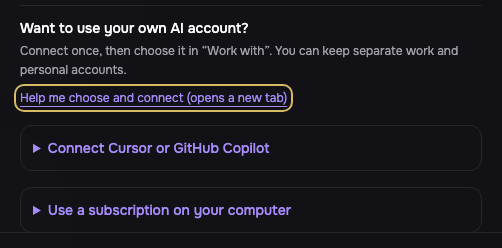
Bring your own AI account
Connect separate work and personal accounts, then choose who helps with each item.
Board → Open an item → Let AI work on thisChoose Help me choose and connect to find the right setup.
02Project repositories
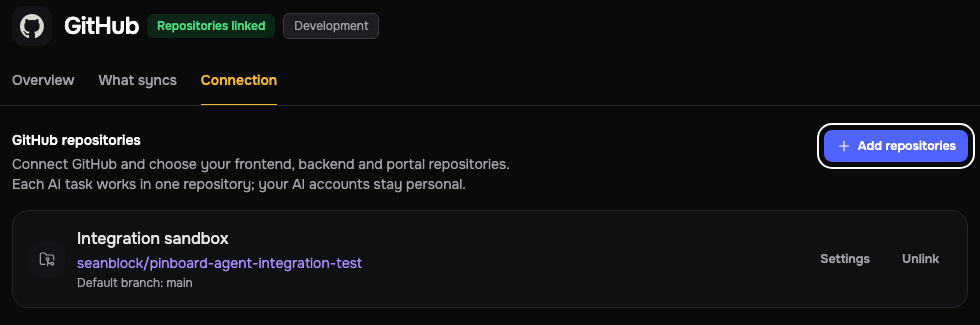
Keep your project’s repositories together
Link the frontend, backend and portals, then select the right repository for each task.
Project settings → Integrations → GitHub → ConnectionChoose Add repositories to open the account and repository picker.
Every change
Personal AI accounts
3What to expect
Open a board item and choose Let AI work on this below its title. Account connections belong to each member; cloud accounts follow their provider’s billing and repository permissions. Connections that run a subscription on your computer are not available yet.
- NewConnect several AI accounts, including accounts with different email addresses, and choose which one works on an item.
- ImprovedA guided handoff explains where work runs, how to connect an account, and where to review the result while keeping the human owner unchanged.
- NewSee task progress and review the result from the same board item.
Project repositories
4What to expect
Open Project settings → Integrations → GitHub → Connection. Sign in with your own account and approve repository access. A project can link several repositories; each AI task selects one repository and base branch.
- NewChoose repositories from the accounts and organizations you can access, using a searchable connection picker.
- NewKeep frontend, backend and portal repositories together in one project, with a separate default branch for each.
- ImprovedRepository connections use the same overview, connection and capabilities layout as other integrations.
- FixedSave a selected repository after signing in without losing access to the current project.
Knowledge base
2What to expect
Connection instructions live in knowledge-base articles. Public help centers show published articles with navigation and links to related guidance.
- ImprovedRead setup instructions in shorter sections with clearer steps, provider-specific guides and source links.
- ImprovedFind your place with article navigation, search, related articles and previous or next steps.
Time tracking
3What to expect
Submitted and approved time stays locked until withdrawn or reopened. Invoiced hours stay protected while their invoice is active. Logging preferences can be personal, with additional requirements set by the workspace or project.
- NewSubmit a timesheet for review and follow its approval and correction history.
- ImprovedRetries avoid duplicate time entries, time ranges preserve their supplied offsets, and totals appear on board items.
- ImprovedTime reports, billing links and work-item selection share the same recorded entries. Export your time, copy or repeat a day, and turn on optional logging reminders.
Boards and project overview
5What to expect
Project dashboards and analytics summarize board work. Configure fields and item-panel sections together. Board managers can delete a regular board from its three-dot menu after confirming; the tickets board is protected.
- ImprovedReview board trends and project progress from the dashboard and analytics pages.
- ImprovedEdit several board items together and use more compact layouts on a phone.
- ImprovedProject navigation centers task work on boards instead of a separate Tasks app.
- ImprovedArrange fields and item-panel sections in one settings window, with clearer controls for compact layouts.
- ImprovedDelete a board from its three-dot menu with a confirmation that names the board.
Content sidebar
2What to expect
Use the sidebar’s + button or right-click its blank space to create in the folder you are viewing. New folders ask for a name before saving; cancelling creates nothing.
- ImprovedCreate named folders, notes and boards in the current sidebar folder, including when browsing independently of the page.
- ImprovedRight-click blank sidebar space for creation actions and navigation back to the parent folder.
Ticket conversations
2What to expect
Read and reply to a ticket conversation in its drawer. Open image attachments in the image viewer, or download attachments and save an edited image copy.
- ImprovedRead the conversation and compose a reply together in a clearer ticket drawer.
- ImprovedPreview image attachments and find download or save-a-copy actions beside each attachment.
Sign-in and mobile navigation
2What to expect
Enter your email directly on the sign-in page. On a phone, arrange the bottom navigation and More menu around the tools you use.
- ImprovedSign in through an inline email form with consistent account-provider buttons.
- NewRearrange the phone navigation against the live bottom bar.
Voice and meetings
2What to expect
Meeting companion improvements appear in the Voice app when its separate app update is installed. Web term lookup keeps meeting context short and uses the workspace’s configured AI billing.
- ImprovedFollow meeting information with clearer text and a more readable companion layout.
- ImprovedCorrections help improve subsequent dictation, and term research distinguishes current work items from general explanations.
Arcade
2What to expect
Browse the game store for the new driving game or start the guided tutorial. Daily puzzle timing tracks active play and identifies interrupted attempts.
- NewTry Cargo, Alibi, Mosaic and Prism, play a highway combat game with enemy waves and upgrades, or learn Echo through an interactive tutorial.
- ImprovedMobile game navigation and daily puzzle timing work more consistently.
Marketplace
1What to expect
The marketplace lists your workspace’s available assistants. Add or restore an assistant before choosing it in a conversation.
- NewBrowse real workspace assistants, enable the ones you need, and add them to conversations.
Self hosting
2What to expect
Self-hosted installations require an operator to configure services, run preflight checks and follow the upgrade procedure. These tools do not provision or migrate a hosted workspace automatically.
- NewPrepare portable installation packages with configuration checks, recovery tooling and controlled upgrade steps.
- ImprovedFresh installations wait for database setup, and upgrades support external data services.